Interface
The current interface has seven tabs: Home, Engine, Project, Input data, Settings, Results and Details. Historical screenshots from earlier plugin versions do not describe this layout.
The plugin uses one independent light color scheme: white surfaces, dark text, blue actions/selection and explicit semantic errors. It does not inherit QGIS's dark/gray theme or change the appearance of QGIS and other plugins. All plugin dialogs use this scheme; native operating-system file pickers remain controlled by the operating system. User fonts and display scaling are respected.
The compact Selected for run checklist sits below the tabs, beside the persistent run/status area, and is visible from every tab. Engine, Project, Zone grid, Census and Covariates show selection readiness; click an item to navigate to its existing controls. These checks do not replace the engine's scientific validation of grid alignment, census IDs or data support.
Task text appears in a separate plain-text status area, fitted to at most three rendered lines so long messages cannot push the run action off-screen. A tooltip retains the caller-bounded text; Details contains the full diagnostics and Copy diagnostics copies the displayed messages. Elapsed stage text is fitted to two rendered lines. The numeric progress bar is shown during analysis/import/tools work and hidden when idle. Failures remain visible after readiness refresh; Details opens the complete diagnostics when a long message is shortened. Engine setup also has its own progress on the Engine tab.
Home
Home shows the packaged project logo, the two installation steps and a next action based on current readiness. Guidance can be collapsed; readiness is always recomputed, not remembered as a stale completed step. Projects remain usable without an engine for inspection; calculations and preparation require it. About / citation… shows packaged authors, version, links and citation. Links open only when explicitly clicked.
Engine
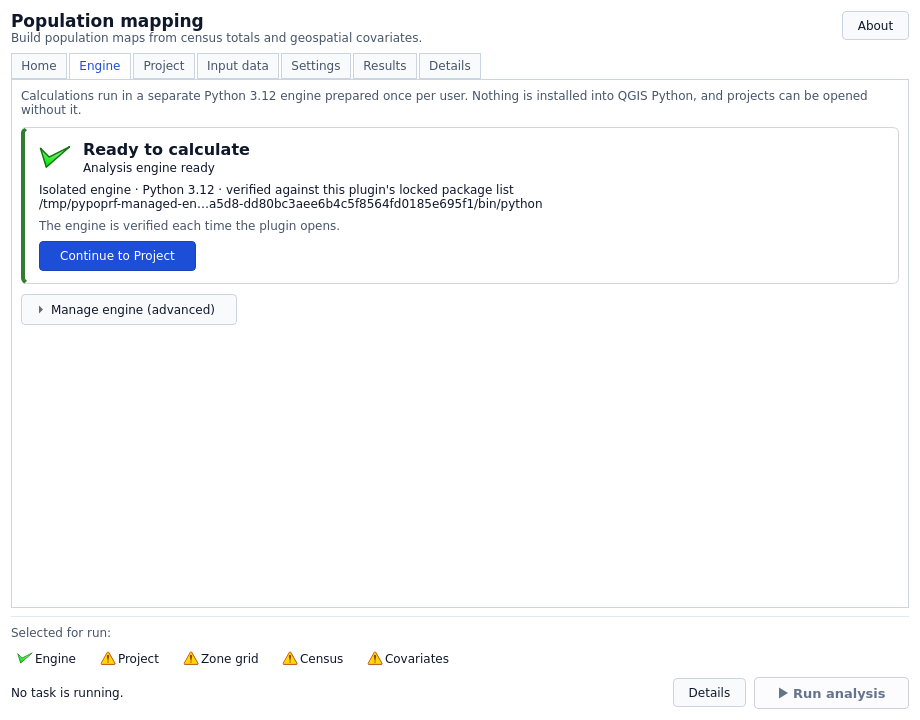
The Engine tab checks for the plugin's isolated Python runtime. Checking, missing Python, verified selection, preparation, readiness and failure have distinct visible states. A ready engine offers the next workflow step instead of installation controls. Manage engine (advanced) reveals repair, discovery and manual interpreter selection; downloading Python is offered only when needed. Choose a verified 64-bit CPython 3.12 from the discovery list and use Set up engine when needed. Setup downloads the locked wheel dependencies into a separate per-user environment; plugin activation does not install packages into QGIS. An update only switches to a verified new environment after its checks pass.
Setup and discovery run in a background worker. Cancel setup requests cancellation of setup. Read the readiness message to see whether a project, inputs or engine preparation is still needed. See the installation guide for platform details.
Project
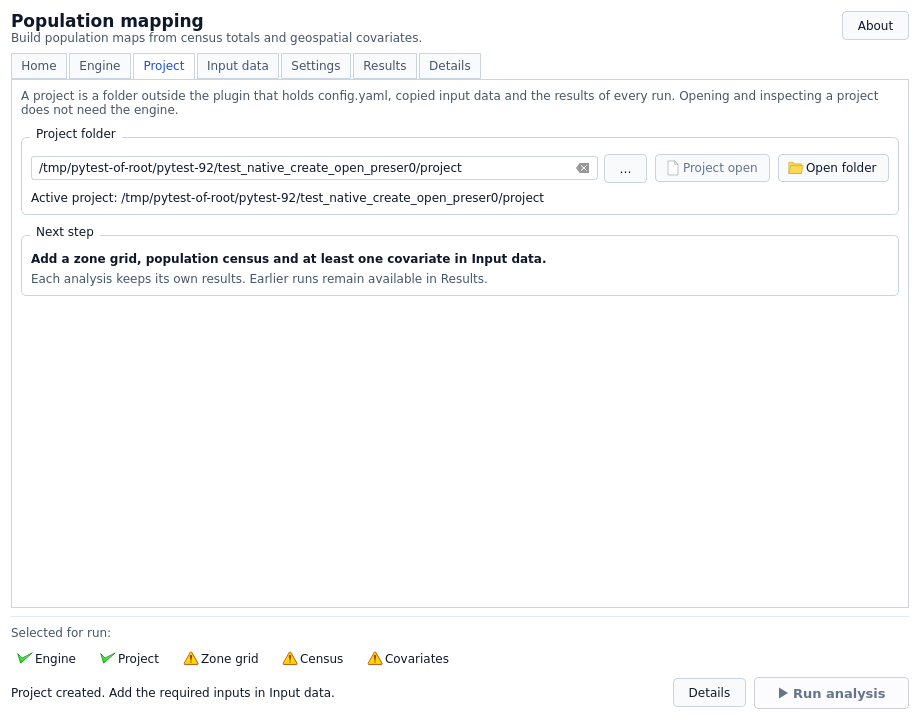
Choose a folder outside the plugin/cache, then explicitly activate it:
| Folder state | Action / state | What it means |
|---|---|---|
| Nothing selected | Choose project folder (disabled) | Select a folder first. |
Selected folder has no config.yaml |
Create project | Add a new configuration and project data directory; unrelated files are not imported or overwritten. |
Selected folder contains config.yaml |
Open project | Validate and restore saved inputs/settings. |
| Successfully active folder | Project open (disabled) | Ready for input/settings work; repeated clicks do not reload the project. |
Active project: … identifies the folder actually opened. Merely selecting a different folder does not activate it: input/settings controls and Run are gated until you explicitly create/open that selection. Selecting the same active path does not invalidate the project. Open folder opens the active project's directory in your file manager; it does not activate a new selection.
Opening preserves the saved configuration and earlier runs, although the GUI may
create or append its diagnostic log. Locations are checked before activation,
imports, analysis and log switching. The GUI log stays in the project's output
folder even when numerical output_dir differs; dedicated regular log files are
required. Refused locations are not moved or deleted. See
Projects for folder layout, switching, movement and backup rules.
Input data
Select the Zone grid and Population census and add at least one covariate using Add raster files…. Optional fields are Water mask (1 = exclude), Population support (1 = include) and Age and sex census.
Imports run outside the GUI and report progress. Filename conflicts open a choice to reuse verified identical bytes (with raster-resource checks), import a separate copy under a new name, or cancel. Existing inputs are never overwritten. Clearing a field removes its configuration reference, not the copied file. CSV headers are previewed, but column mapping and numerical checks still occur before analysis. The run button becomes Cancel import while an import is active. Destination names are checked; inputs are not overwritten. On a failed selection the field is restored to the input actually configured in the project.
The covariate table shows name, size, path and actions. Its informational cells are read-only. Use a row's Delete button or the Delete key to remove selected covariates from configuration; their copied files remain in the data directory. See input requirements for alignment, NoData and sidecar rules.
Prepare / align inputs… opens a guided workflow using the separate numerical engine. Select a reference grid, an existing zone raster or census polygons, CSV ID/population columns, and explicit predictor quantities/resampling methods. Inspect the diagnostics and acknowledge the choices before creating a new prepared project. Existing projects and source files are not overwritten. The wizard opens the prepared project only after successful completion and your confirmation. See preparation rules.
Local QGIS layers can be selected instead of browsing for supported raster/vector files. These controls use the underlying local dataset, not rendered colors. Remote, memory, virtual, filtered or edited layers must be explicitly exported first; a selection is not silently substituted for the complete file.
Settings
Map census column names, configure workers and tile size, choose the target transform and feature-selection threshold, and set diagnostic logging. The option Add population maps to QGIS applies after successful completion. There is no model-import control or GUI control for advanced spatial-CV settings.
Full descriptions and supported advanced YAML fields are in Settings.
Running and stopping
The prominent Run analysis action stays below every tab. Its appearance does not bypass readiness checks; it changes to the appropriate cancellation action during owned work. Run analysis starts a separate engine process. Numerical preflight, fingerprinting, fitting and raster computation occur outside the QGIS GUI. The progress area names the current stage; numerical stage percentages are milestones rather than an estimate of remaining wall-clock time.
Stop requests cooperative cancellation. If the owned calculation process does not respond within the grace period, the adapter stops that process. The GUI waits for native process completion before releasing job ownership or presenting a terminal result. Closing or unloading during background work requests cancellation and defers disposal until owned work has finished. Earlier runs remain available.
Results
Each attempt has its own directory beneath <output_dir>/runs/. The Results
tab lists recent runs with status and population-map count. Use Refresh,
Open result folder, or Add maps to QGIS. Only complete runs with valid,
present population-map paths can be added. Failed, running or cancelled
attempts can be inspected for diagnostics but are not treated as finished maps.
Run timestamps are displayed in local time; the original directory ID remains
in the tooltip. Refresh preserves your selected run, while a newly successful
analysis selects its own results rather than a newer failed attempt.
The raw prediction.tif contains model density weights and is not added as a
population-count result. The result folder also contains the effective config,
model bundle, extracted features, validation records and manifest.
The quality dashboard below the run history reads the saved held-out zone-density predictions, not the final census-normalized map. It shows OOF observed/predicted scatter, highest absolute zone-density errors, permutation importance and explicit validation limitations. The training-mean baseline uses the same outer folds and only the other folds' observations. Missing, changed or unsupported diagnostic artifacts are reported rather than replaced by made-up scores. Conservation remains a separate engine-reported check; this panel does not independently recompute raster totals or establish pixel accuracy.
Show selected / top error zones in QGIS adds diagnostic zone-centre points when saved centroids and CRS are available. Those points identify census zones, not the location of pixel errors. Completed population maps are grouped by run under pypopRF, with log-spaced display colors and persons/pixel labels; styles do not alter values. Re-adding the same result does not duplicate it.
Population in an area… sums a selected completed population map inside a local polygon AOI. The rule is cell centre inside or on the polygon boundary; overlapping AOI polygons are unioned and counted once. Cells partly intersecting the boundary are not fractionally allocated. Coverage is the fraction of selected centres within the raster with valid values, not the fraction of the entire AOI area. An AOI outside the raster or containing NoData yields a clearly labelled partial supported-cell sum. This is a model-derived estimate, not a new census.
Details
The activity area shows the actual current message and elapsed time, not an ETA. Package downloading uses an indeterminate indicator rather than a false byte percentage. Details includes a bounded stage history, and opening a project or starting a calculation does not clear earlier diagnostic messages.
Details shows bounded plain-text setup and processing messages. Clear view clears the displayed messages; Copy diagnostics copies them for a bug report. Clearing the view does not delete saved logs or previous runs.
Verification of zone totals checks allocation arithmetic. It does not establish where people actually live within a zone; reported model scores describe held-out zone-average density rather than independent pixel-level accuracy.